


Node Video
4.5599.00 Reviews
App Specs
- Version
- 8.9.2
- Updated On
- License
- Free
- Downloads
- 10,000,000+
- Developer
- Shallway Studio
- Categories
- Video Players & Editors
- Platform
- Android, iOS
Screenshots
 Analysis by AppCompare
When I start an edit on my phone, it’s usually because I have a handful of clips that need to become one clear, watchable story before I share them. That is the kind of job where Node Video makes sense: it is a mobile video editor from Shallway Studio that aims beyond quick trimming, with room to build a layered result. I would reach for it when I want more control than a basic social-media editor offers, but still want to work directly on the device where I shot the footage.
That extra control changes the workflow. Instead of choosing a filter and calling the video finished, I can think in stages: pick the useful shots, arrange them, shape the sound, add visual elements, then check whether the whole piece still feels coherent on a small screen. The trade-off is that a deeper editor asks more of me. If I only need to remove a few seconds from one clip, its broader toolset may feel like more app than the task deserves.
Starting with footage, not effects
I get the best results by deciding what the video is for before opening the effects. A short family recap, a product clip, and a fast-paced social post need different pacing, even if they use the same source footage. I first identify the beginning, middle, and ending, then trim away pauses and accidental camera movement. That simple pass gives every later layer a job instead of turning the timeline into a collection of decorations.
For example, after filming a weekend walk, I might choose a wide opening shot, a few close details, and one final clip that gives the sequence a natural finish. I would keep the edit modest, add a short title only if it helps explain the scene, and use music carefully so it does not drown out the sound of the place. The useful question is not how many effects I can apply; it is whether each one helps someone follow the moment.
Building an edit in layers
The multi-layer approach is one of the reasons I would choose this editor over a simple trim-and-filter app. I can place text, images, or additional video over a main clip and treat those elements as parts of a composition. That opens up practical options: a title can sit over an establishing shot, a cutaway can cover a jump in the main footage, or a graphic can clarify what the viewer is looking at.
A small workflow tip is to get the main sequence in order before adding overlays. If I put captions and decorative elements in place too early, then change the timing underneath them, I create extra work checking that everything still lines up. I would also keep a clean version of the underlying footage in mind. When a layered edit becomes difficult to read, temporarily simplifying it can reveal whether the problem is the source sequence or the added material.
This is also where expectations matter. A phone screen makes detailed timeline work possible, but not always comfortable. Fine timing decisions and crowded layer arrangements can take patience, especially when I am working with several visual elements. For a quick post, I would keep the structure lean; for an edit where precise control is the point, I would accept the slower, more deliberate process.
Worth Reading Before You Choose

Flipboard Shows What News Apps Must Do Beyond the Feed

Switching to Android Auto Means Rethinking Your Driving Routine

Google Calendar Makes a Crowded Week Easier to Manage

Ludo King Makes the Most of the Minutes Between Plans

Baby Panda World Brings Quick Play to Modern Phones, but Its Game Library Feels Busy

ESPN’s Live Game View Makes Following Close Games Easier
From a first cut to a shareable result
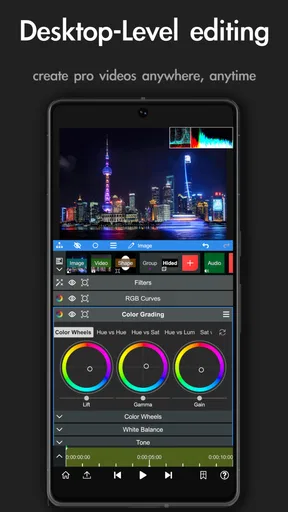
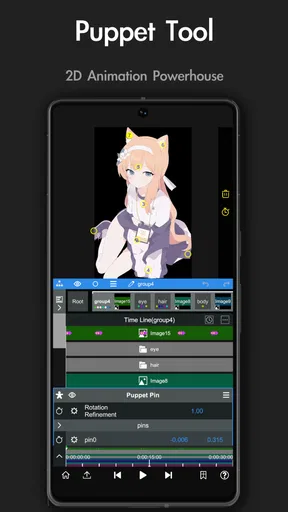
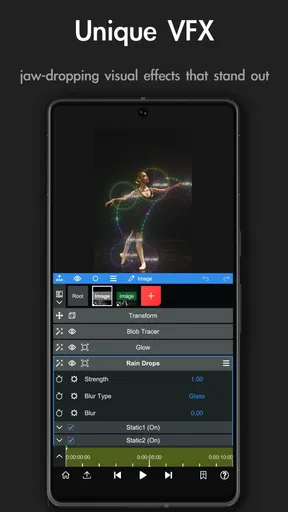
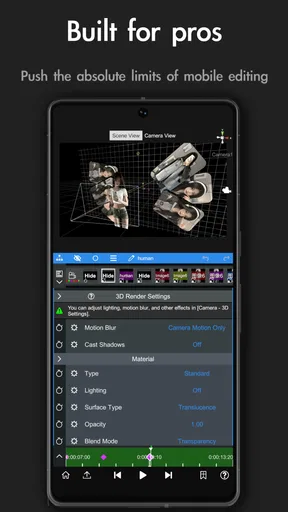
First thing’s first, Node Video is packed with features. Seriously, it’s like a mini editing suite in your pocket. You’ve got your basic tools like trimming, cutting, and merging, which are super intuitive. But then, bam! You’ve got advanced stuff like 3D Renderers and AI effects that make your videos pop in ways you wouldn’t expect from a mobile app.
One of the coolest features has to be the multi-layer editing capability. You can stack up layers like you're in a full-blown desktop editor. This means you can add text, images, and even other videos on top of your main footage without breaking a sweat. It’s as if they took what’s great about desktop editing software and squeezed it into a handy mobile app.
AI and 3D Effects
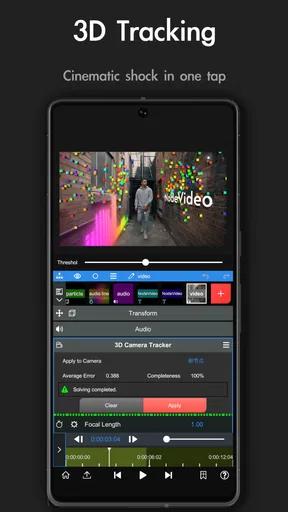
The AI-powered features are a game changer. Imagine being able to remove backgrounds automatically or apply effects that adapt to the movements in your video. It’s almost like having a little editing assistant with you. The 3D effects are also pretty rad. You can create visual depth and dynamics that really make your videos stand out.
I would use those tools with a specific shot in mind rather than applying them to every clip. An automatic background removal effect, for instance, is most useful when separating a clear subject from its surroundings; busy edges or movement can make the result harder to judge, so I would review the full clip instead of trusting one still frame. Likewise, a 3D treatment can add depth to a title or visual, but it can distract from an intimate or documentary-style moment. Restraint is part of getting a polished result.
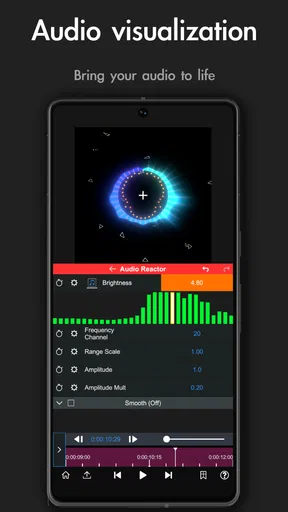
Don’t even get me started on the audio features. You can fine-tune your sound quality and add effects to make your audio as crisp as your video. Whether it’s voiceovers or background music, it’s all at your fingertips.
For a voiceover-led clip, I would listen once with the picture out of focus—just letting the sound play—before I make a final decision. That makes it easier to notice whether a music bed is competing with speech or whether an effect has made the recording feel unnatural. If a video depends on clean dialogue, I would prioritize a clear original recording and use editing to support it, rather than expecting effects to rescue poor source audio.
Moving between editing and sharing
A mobile project often has a handoff: I shoot on a phone, edit there, then send the finished video to a friend, a client, or a social platform. I would check the completed piece from beginning to end before sharing, paying attention to the opening seconds, title placement, audio balance, and final frame. Those checks catch common mistakes that are easy to miss while concentrating on individual layers.
If I am making several versions for different audiences, I would keep the core sequence consistent and change only what needs to change, such as the title or the emphasis of a particular shot. That keeps the edits manageable and reduces the chance of accidentally rebuilding the whole project. The important practical point is to leave time for a final review; creating the timeline is not the same thing as confirming the exported result looks and sounds right.
Compared with the usual alternatives, this sits on the more hands-on side of mobile editing. A lightweight editor is often quicker for a one-tap template or a basic trim, while desktop software is generally the better fit when I need a large workspace and a long, intricate project. Node Video occupies the middle ground: it offers a more layered way to work on a phone, but that flexibility makes it less immediate than simple editors. I would choose based on the job, not on the assumption that the most powerful option is always the fastest.
Who will get the most from it
I think it suits people who enjoy shaping a video rather than merely tidying one up: social creators who want layered visuals, hobbyists experimenting with effects, and anyone who wants to combine footage, text, and sound in one mobile workflow. It can also be a good learning space for someone curious about how visual layers and timing affect a finished piece, provided they are willing to explore rather than expect every task to be automatic.
I would point a casual user toward a simpler option if their usual edit is just cutting the start and end off a clip. I would also think twice before choosing a phone-first workflow for a long project with many fine adjustments; a larger screen and desktop controls can make that kind of work easier to inspect. The app’s range is a strength when I need it, but it is not a reason to complicate a straightforward video.
Getting Started
Now, if you’re worried about a steep learning curve, don’t be. The user interface is sleek and user-friendly. There are plenty of tutorials and guides available within the app to help you get started. It’s like the app developers knew we needed a little hand-holding at first, which is a nice touch.
Even with guidance, I would learn one type of edit at a time. Start with a short sequence, make a clean cut, then try one overlay or effect and see how it changes the result. That approach is less frustrating than exploring every tool at once, and it gives you a clearer sense of which controls you will actually use. Keeping an early project small also makes it easier to spot where your timing or composition needs work.
Installation is a breeze. It runs smoothly on both Android and iOS, and I didn’t encounter any hiccups during setup. Just download, install, and you’re ready to start creating magic.
The Android release is free, is rated for Everyone, and is currently at version 8.7.0; it requires Android 7.0 or later. The app has a 4.5 average from around 67,000 ratings and has passed 10 million installs. Those figures suggest a well-established audience, though they do not tell me whether its detailed workflow will suit every new editor. In-app purchases range from $1.99 to $29.99 per item, so I would check what a particular purchase unlocks before paying rather than assuming every advanced tool is included at no cost.
Choosing the right first project
A useful first test is a short clip with one obvious subject and a clear beginning and ending. Try trimming it, adding a simple title, and listening to the sound before experimenting with a more elaborate effect. This lets you judge the basic rhythm of working in the app without letting a complicated project obscure the experience. If those controls feel natural, then it makes sense to explore layered edits and the more distinctive visual options.
For a busy everyday scenario, imagine I have filmed a quick recipe after work: the finished dish, a few preparation moments, and a brief shot of the table. I would arrange the clips into a concise sequence, use text only where a step needs context, and keep the original kitchen sounds where they add character. If I were sending it to someone who asked how I made the meal, clarity would matter more than a flashy transition. If I were making it as a playful social post, I might try a more stylized treatment—but I would still check that the food and action remain easy to see.
What to check before committing
One practical question is whether a free install is enough for the way you plan to work. Since optional purchases are available, I would first explore the editing approach and identify a specific limitation before spending anything. That avoids buying an effect on impulse only to discover that your regular projects do not need it. A second question is whether you can comfortably manage the timeline on your phone; a small screen is handy for editing anywhere, but it can make precise arrangement feel fiddly.
Another is whether the app matches your sharing routine. If you mainly need a ready-made look with minimal decisions, a template-focused editor may get you to a post faster. If you want to make deliberate choices about layers, sound, and visual treatment, this is the more interesting route. For work that must be checked in detail on a large display, I would consider a desktop editor instead and use the phone for capture or quick revisions.
My overall impression is that the learning curve is not a reason to avoid the app, but it is a reason to begin with a modest goal. Tutorials can help you find your footing; the real test is whether the extra control makes editing more enjoyable for you. I would not promise a professional finish just because the tools are advanced. Good source footage, clear pacing, and restrained effects still do most of the work.
Why You’ll Love It
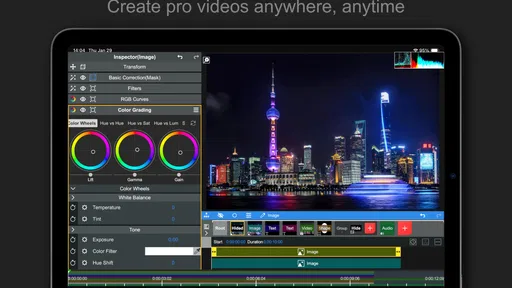
At the heart of it, what I love about Node Video is the freedom it gives you. Whether you’re a beginner or a seasoned pro, there’s something here for everyone. The app brings professional-level editing tools to your fingertips, which is pretty empowering.
Plus, it’s great for those spontaneous editing sessions when you’re on the move. Whether you’re vlogging, creating content for social media, or just capturing precious moments, this app makes it all so easy and fun.
The Final Verdict
In a nutshell, if you’re looking for a powerful yet portable video editing solution, Node Video is definitely worth checking out. It combines ease of use with a robust set of features that are hard to beat. So, what are you waiting for? Get your creative juices flowing and start editing like a pro!
Happy editing!
Pros
- Advanced editing tools for professionals.
- Supports multiple video formats seamlessly.
- Intuitive user interface for easy navigation.
- Regular updates with new features.
- High-quality export options available.
Cons
- Steep learning curve for beginners.
- Occasional lag on older devices.
- Limited free version features.
- Requires significant storage space.
- In-app purchases can be pricey.
FAQs for Node Video
What is Node Video and how does it work?
Node Video is a powerful video editing application available for both Android and iOS. It offers a range of features like multi-layer editing, professional effects, and real-time rendering. Users can manipulate video elements using a unique node-based interface, allowing for intricate edits and creative designs. The app is suitable for both beginners and professionals.
What are the key features of Node Video?
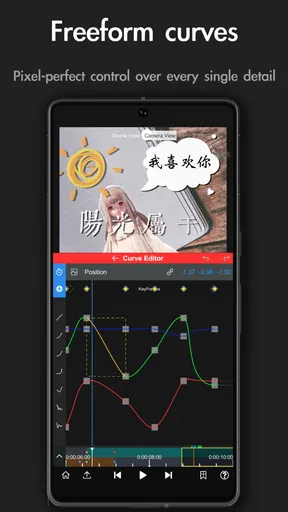
Node Video stands out with its node-based editing system, which offers flexibility in video manipulation. Key features include multi-layer editing, real-time rendering, a vast library of effects, and advanced tools like keyframe animation and masking. It also supports 4K video editing, making it a robust choice for high-resolution projects.
Is Node Video free to use, or does it require a purchase?
Node Video offers a free version with essential features, making it accessible for basic editing tasks. However, for advanced features like 4K support and additional effects, users need to purchase the Pro version. This model allows users to test basic functionalities before committing to a purchase.
What are the system requirements for Node Video?
Node Video is designed to run on most modern Android and iOS devices. However, to ensure smooth performance, particularly for 4K video editing, it is recommended to use a device with a minimum of 4GB RAM and a recent processor. Always check the app store for specific compatibility with your device model.
How does Node Video compare to other video editing apps?
Node Video offers a unique editing experience with its node-based system, providing more control over the editing process compared to traditional timeline editors. While it may have a learning curve, its advanced features and real-time rendering set it apart from many competitors, making it ideal for users seeking a comprehensive editing tool.


